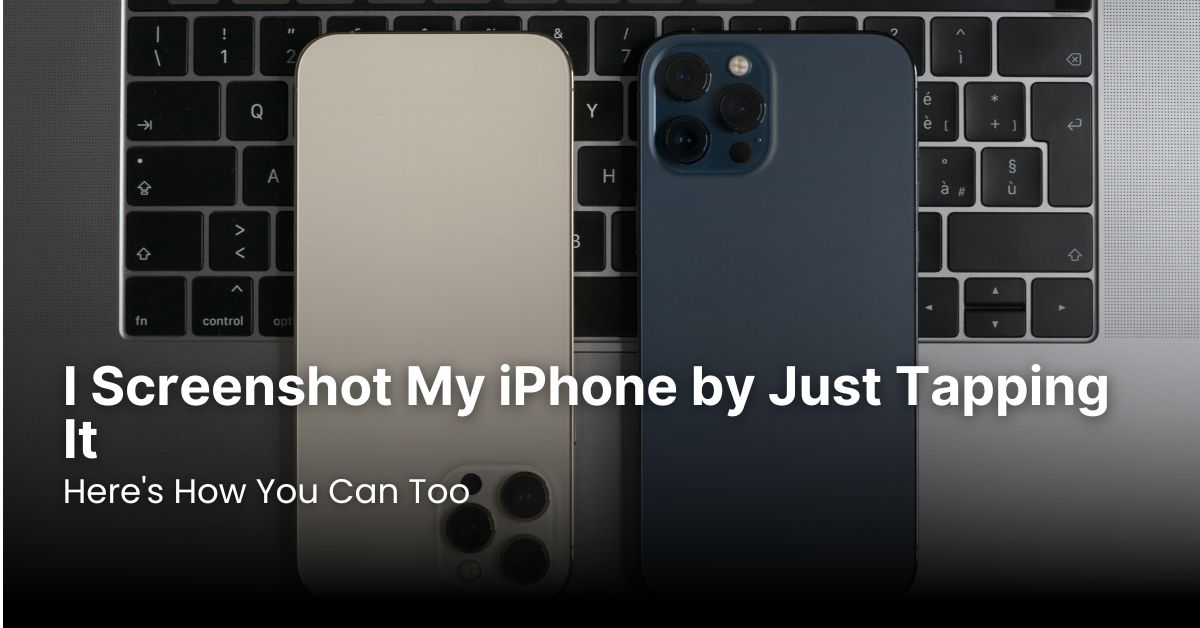
Have you ever found yourself in a rush, needing to capture something on your iPhone screen, but fumbling with the buttons just takes too long? What if I told you there’s a super cool, incredibly convenient way to screenshot your iPhone by tapping the back of it? That’s right, no more awkward button presses or tricky finger gymnastics. This game-changing feature, called Back Tap, is built right into iOS, and it’s a total lifesaver for quickly grabbing those important moments.
I’m serious, once you try this, you’ll wonder how you ever lived without it. It’s like having a secret shortcut for one of your most-used iPhone functions. Whether you’re trying to capture a hilarious text conversation, an important email, or a beautiful photo, being able to simply tap the back of your phone makes the process so much smoother and faster.
So, ditch the old methods and get ready to unlock a whole new level of iPhone efficiency. We’re going to dive deep into how to enable and customize this awesome feature, so you can start screenshotting with just a tap in no time.
Back Tap Screenshot iPhone: The Magic Behind the Tap
The magic behind this incredible shortcut is Apple’s Back Tap feature, introduced with iOS 14. It essentially turns the entire back of your iPhone into a giant, customizable button. You can set it up to perform various actions with either a double tap or a triple tap. And yes, taking a screenshot is one of the most popular and useful actions you can assign.
This isn’t just a gimmick; it’s genuinely practical. Think about it: your hand is already usually wrapped around the phone, so a quick tap with your index or middle finger on the back is incredibly natural. It’s a far more intuitive gesture than trying to press two buttons simultaneously, especially when you’re holding your phone with one hand or in an awkward position. For more traditional methods, you can always refer to this guide on how to screenshot iPhone.
Enable Tap to Screenshot: Getting Started
Enabling Back Tap for screenshots is surprisingly easy. You don’t need any third-party apps or complex workarounds. It’s all built right into your iPhone’s accessibility settings. Here’s a step-by-step guide to enable tap to screenshot on your device:
- Open Settings: Tap the Settings app icon on your Home screen. It’s the one that looks like a set of gears.
- Navigate to Accessibility: Scroll down and tap on Accessibility. This section is packed with amazing features designed to make your iPhone easier to use for everyone, and Back Tap is one of its hidden gems.
- Find Touch: Under the “Physical and Motor” section, tap on Touch.
- Select Back Tap: Scroll all the way down to the bottom of the Touch settings, and you’ll see Back Tap. Tap on it.
- Choose Your Tap Action: You’ll now have two options: Double Tap and Triple Tap. You can assign an action to either or both. For a quick screenshot, I highly recommend assigning it to Double Tap.
- Assign Screenshot: Tap on Double Tap (or Triple Tap, if you prefer). A long list of actions will appear. Scroll down until you find Screenshot and tap to select it. A blue checkmark will appear next to it, confirming your selection.
That’s it! You’re all set. Now, whenever you double-tap the back of your iPhone, it will instantly take a screenshot. Give it a try! It might take a couple of taps to get the feel for it, but you’ll quickly master the gesture. This method is especially useful if you’ve ever wondered how to screenshot iPhone without buttons.
Screenshot by Double Tap iPhone: Customization and Tips
While assigning “Screenshot” to a double tap is the most common use, Back Tap is incredibly versatile. You could, for example, assign “Control Center” to a triple tap, giving you quick access to frequently used toggles without swiping. The possibilities are vast, and it’s worth exploring the full list of actions available to see how Back Tap can streamline other aspects of your iPhone usage.
Here are a few tips to get the most out of your screenshot by double tap iPhone experience:
- Practice Makes Perfect: It might take a few tries to get the tap recognition just right. Don’t worry if it doesn’t work perfectly the first time. The sensor is quite sensitive, so a firm, quick double tap usually does the trick.
- Case Compatibility: Back Tap generally works well with most phone cases, even thicker ones. However, extremely bulky or rugged cases might slightly dampen the vibration, making it less responsive. If you’re having trouble, try it without the case to see if that’s the issue.
- Accessibility Shortcuts: Beyond screenshots, Back Tap can activate a wide range of accessibility shortcuts. For instance, you could set it to open the Magnifier, activate Reachability, or even run a custom Shortcut you’ve created.
- Long Screenshots: While Back Tap handles the initial screenshot, if you need to capture an entire scrolling page, you’ll still need to use the editing tools that appear after the screenshot is taken. Learn more about how to screenshot a long page on iPhone or how to screenshot and scroll on iPhone for full-page captures. You can also explore how to screenshot an entire page on iPhone for specific methods.
- Managing Screenshots: Once you’ve mastered the quick screenshot, you might find your Photos app filling up quickly. Remember you can always edit your screenshots on iPhone directly after taking them, or delete them if they’re no longer needed. And if you’re tired of the sound, here’s how to turn off screenshot sound on iPhone.
How to Set Back Tap Screenshot: Troubleshooting Common Issues
While Back Tap is generally reliable, you might occasionally encounter some minor hiccups. Here are a few common issues and their solutions if you’re having trouble with how to set Back Tap screenshot:
- Back Tap isn’t showing up: Make sure your iPhone is running iOS 14 or later. Back Tap is not available on older iOS versions. Also, it’s exclusive to iPhone 8 and newer models due to the required internal hardware.
- Taps aren’t registering:
- Firmness: Ensure your taps are firm and distinct. Light, hesitant taps might not register.
- Speed: A rapid double or triple tap works best. Don’t pause too long between taps.
- Case: As mentioned before, some thick cases might interfere. Try removing your case to test.
- Restart: Sometimes a simple restart of your iPhone can resolve minor software glitches.
- Accidental Screenshots: If you find yourself accidentally taking screenshots, you can always go back into the Accessibility settings and either:
- Adjust Tap Sensitivity: Unfortunately, there isn’t a direct sensitivity slider for Back Tap. However, if you’re taking accidental screenshots, consider changing the action from Double Tap to Triple Tap, which is less likely to be triggered unintentionally.
- Disable Back Tap: If it’s too disruptive, you can simply set “Double Tap” or “Triple Tap” to “None” to disable the feature entirely.
For all things related to screenshots on your iPhone, check out our comprehensive tag page: how to take a screenshot on iPhone.
Conclusion
The Back Tap feature is a prime example of Apple’s commitment to making the iPhone more intuitive and accessible. Being able to screenshot your iPhone by tapping the back of it is not just a neat trick; it’s a genuine productivity booster that saves you time and effort. Once you’ve set it up, you’ll wonder how you ever managed without it. It truly transforms a common task into a seamless, almost thoughtless action.
So, go ahead, give it a try. Unleash the power of the Back Tap and revolutionize the way you interact with your iPhone.
Here’s a quick recap of how to set up Back Tap for screenshots:
- Go to Settings > Accessibility > Touch > Back Tap.
- Choose Double Tap (or Triple Tap).
- Select Screenshot from the list of actions.
Excerpt:
Meta Description:
X.com Caption:
Tired of fumbling with buttons? 😩 Learn how to screenshot your iPhone by just tapping the back! It’s super easy with iOS’s Back Tap feature. Get the full guide here: [Link to your article] #iPhoneTips #Screenshot #TechHacks